Zombie Trend in CapCut: Templates or a Finished Film?
There are two ways CapCut shows up in the zombie trend. Some people use a CapCut zombie template, which drops your photos or clips into a ready-made edit. Others make the scenes elsewhere and use CapCut to cut them together, add the sound and put a line on screen. CapCut does not generate the full story from two photos on its own.
Our generator makes the whole 15-second film with its match cut and sound, so you only need CapCut if you want to add text or the trend sound before posting. This guide covers both routes.
Updated
CAPCUT
The zombie trend in CapCut
- Zombie templates
- Add a sound
- Add a line
Is there a CapCut template for the zombie trend?
Yes, several. On 9 October 2026 CapCut’s template site listed pages such as “Couple Zombie AI” and “Zombie AI filter”, and ChatGPT pointed people to a “My Beloved Zombie” template when asked about the trend. Templates come and go and differ by region, so search CapCut for “zombie” on the day. A template follows its own edit: you fill in its slots, you do not change its story.
We have not tested them, and we have no tie to the company.
Using a CapCut zombie template, step by step
- Open the template in CapCut (on the template page, tap “Use template”).
- Pick the photos or clips it asks for, in its order.
- Preview, swap any photo that came out badly, then export.
- Post from CapCut or save to your phone and post from TikTok.
Adding a sound and a line to a finished film
- Download the MP4 from My videos. It has no watermark and its own sound (wind, a growl, soft piano).
- Start a new project and add the MP4.
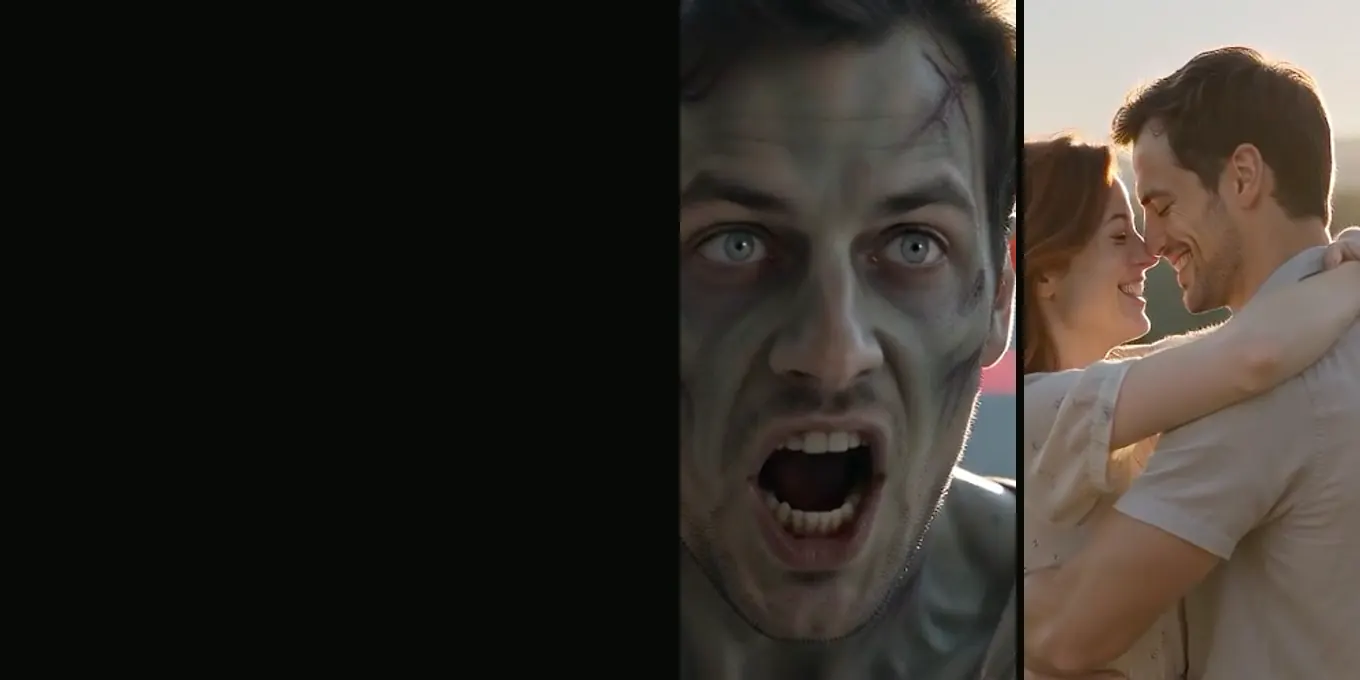
- Add text over the first two seconds (the close-up in tears) or the last three (the faces in the meadow). Keep it short.
- Add the sound you want and lower the film’s own sound if both play.
- Export at the same frame you rendered: 9:16 for TikTok and Reels, 16:9 for YouTube.
Do not cut the film down: the seven shots are timed for 15 seconds, and the memory is only the last four to six of them.
Common editing mistakes
- Cutting to the memory on the landing instead of mid-leap. The zombie match cut guide explains why.
- A trend song so loud it buries the growl and the gun hitting the floor.
- Text across the faces in the last shot.
- Exporting a wide film into a tall frame, which leaves black bars.
FAQ
Does CapCut have a zombie template?
Yes. On 9 October 2026 CapCut listed templates such as “Couple Zombie AI” and “Zombie AI filter”. They change often; search the app for “zombie”. We have not tested them.
Do I need CapCut to make the zombie trend?
No. Our generator makes the whole 15-second film with the cut and the sound from two photos. An editor is only useful for adding text or a different sound.
How long should each shot be in the edit?
In our film: about 2 seconds for the close-up in tears, 2 for the approach, 1 for the zombie face, 2 for the gun dropping, 2 for the leap and 6 for the memory.
Sources
Read next
Zombie Trend Captions and Sounds (and the AI Label)
Lines for the screen, captions for the post, the sound, and the AI label each platform asks for
The Zombie Match Cut, Explained Frame by Frame
The leap that lands in a memory: what a match cut is, the two prompt lines behind it, and frames from our renders
How to Make an AI Zombie Video: Two Photos, One Film
Step by step: the two photos, Couple or Pet, the settings, and how to check the 15-second film before you post it
Zombie AI Video Generators Compared (October 2026)
Models, platforms and one-step zombie trend sites: what each takes, with lengths and prices checked on 9 October 2026
AI Zombie is an independent site with no ties to TikTok or to any film or TV studio. Clips by other creators belong to them.